AI meeting notes that never leave your laptop
Record your Zoom, Teams, or Meet call from your browser, in a tab or a desktop app. Get a transcript, notes, action items, and a follow-up email. No bot joins the call, and there is nothing to install.
No account needed. Best in Chrome or Edge.

Why it is different
No bot joins your callNobody sees a notetaker in the meeting.
Nothing to installNo app and no extension. Just a browser tab.
Audio never leaves your laptopThe AI runs on your computer, not on ours.
How it works
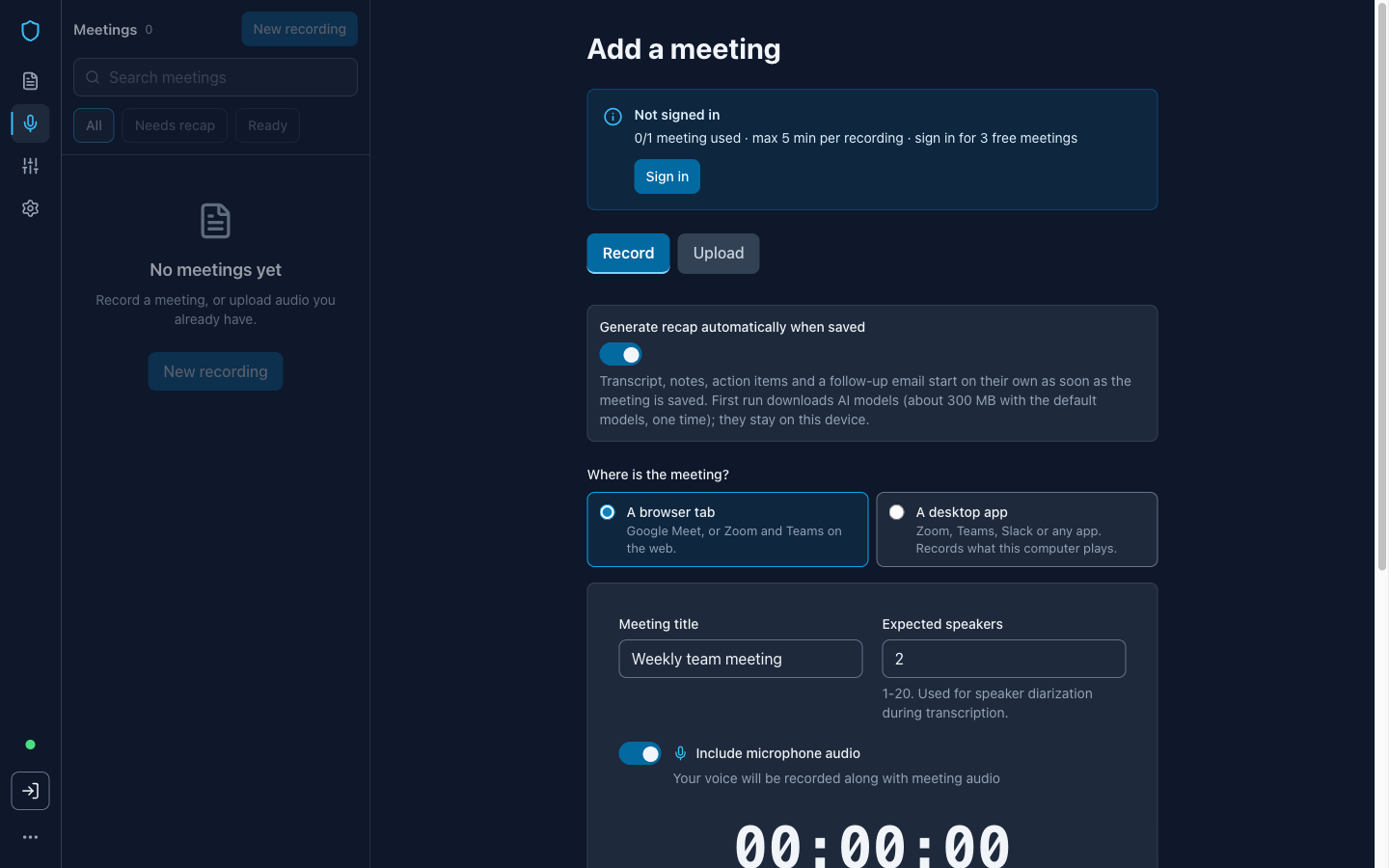
1. Record the meeting
Pick where the meeting is, a browser tab or a desktop app, and hit record. Share its sound when your browser asks. Stop when the call ends. The audio saves on your computer.
2. Get your recap
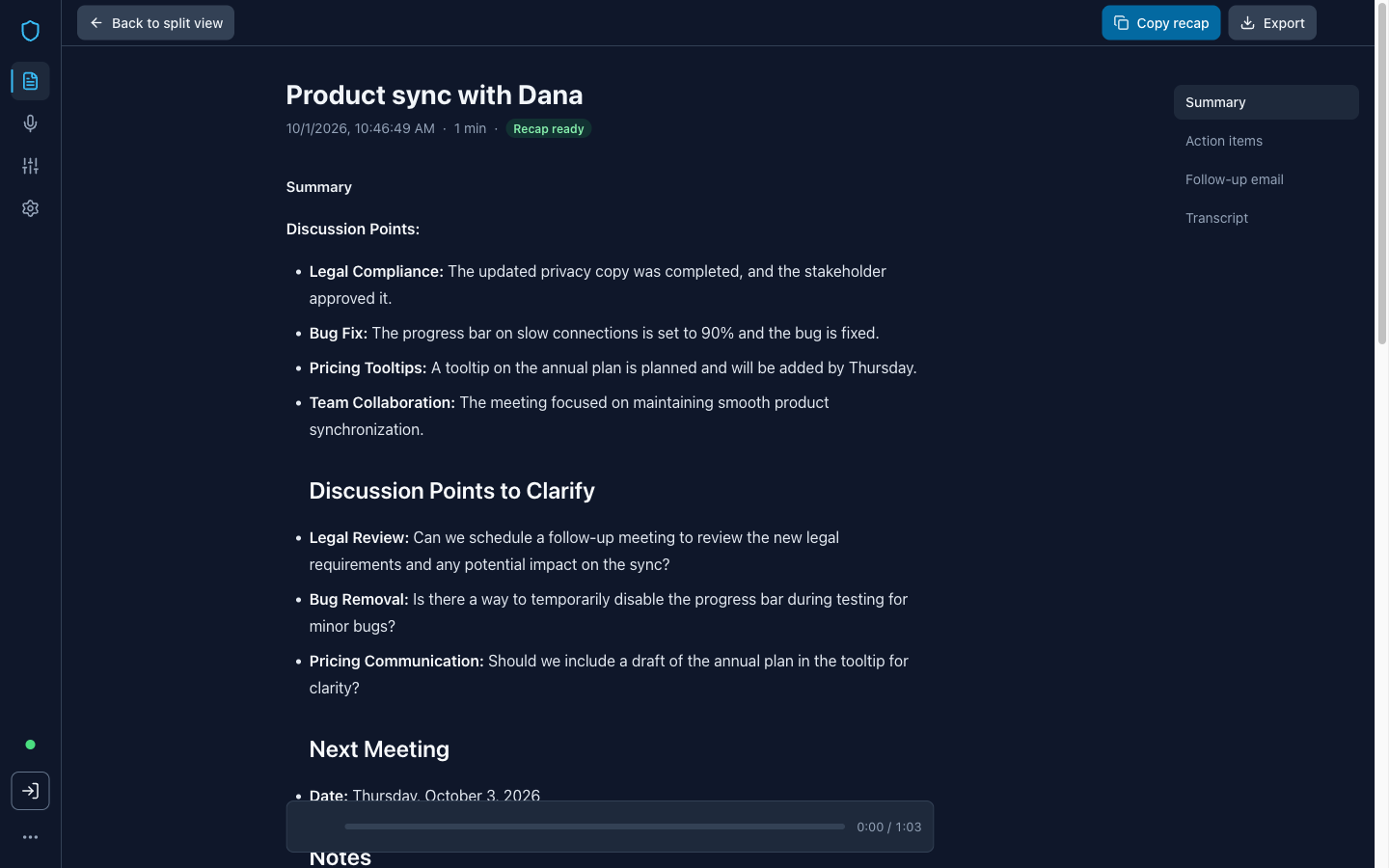
Your recap starts on its own after you save: notes, action items, and an email.
The AI downloads once, about 300 MB. After that it works offline.
3. Send the follow-up
Copy the whole recap in one click, or paste the email into your mail app. Remake any section you don't like.
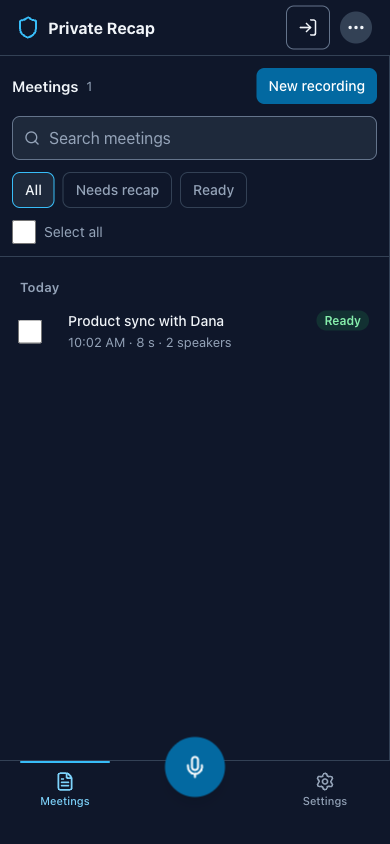


What you get after every call
Transcript
Every word, with speaker names you can set.
Notes
The points that mattered, in a short summary.
Action items
Who does what next, pulled from the call.
Follow-up email
A draft you can edit and send in a minute.
Built for calls that stay private
Consultants
Client calls stay confidential, with no third party listening in.
Recruiters
Capture every interview and send the follow-up before the next call.
Founders
Keep investor and board talks off other companies' servers.
What “private” means here
- Your audio, transcript, and notes stay on this computer. We never receive them.
- The AI runs inside your browser, not on our servers.
- The app goes online for three things only: the one-time model download, your account and billing, and anonymous page counts.
Free to try. Pro when you need more.
Free
$0
- 5-minute recordings
- 1 saved meeting, 3 with a free account
- uploads up to 5 minutes
- notes, action items, and email included
Pro
from $4/week
- no time limit
- unlimited meetings
- uploads up to 1 hour or 200 MB
- download and export
- $12/month or $99/year
Questions
Does a bot join my meeting?
No. It records the meeting’s sound on your own computer, so no bot or extra guest appears in the call.
Do I need to install anything?
No. It runs in your browser, and you can add it to your dock like an app.
What does free include?
One saved meeting before you sign up, three after. Each recording can run five minutes; Pro removes the limit.
Which meeting apps does it work with?
Zoom, Microsoft Teams, and Google Meet, in a tab or desktop app, plus any audio file. Desktop apps need Chrome or Edge on Windows, or on a Mac with macOS 14.2 or later and Chrome or Edge 142 or later.
Does it work offline?
Yes, after the first download. That download is about 300 MB with the default models and happens once; a bigger model you pick in Settings downloads more.
Can I use a recording I already have?
Yes. Free uploads run up to five minutes; Pro takes files up to one hour or 200 MB.
Will my client know I’m recording?
That’s up to you. Nothing is sent anywhere, but please tell people you’re recording.
Try it on your next call
Record one meeting, read the notes, and decide from there. Nothing is uploaded either way.